


Choose the matching device
The illustrations below show the 1.1.1.1 connection utility on two mobile operating systems. Use the sequence for the handset in front of you. If a browser page already opens normally, you can read the timers in that browser. Installing a connection utility is a separate choice and is not part of creating an account.
Read the store listing
The first picture identifies the store icon. The second shows the search result and the install control. Read the product and publisher names in the listing before proceeding. Similar search results can appear in a different order on another handset. Store language, button labels and icon placement can also change between releases.
Understand the switch
The third picture shows the utility before the connection is active. Read any device permission prompt before accepting it. The fourth picture shows the connected state inside the utility. That state describes the network connection on the handset. It does not confirm registration, sign-in or the availability of any destination.
Return to the browser
Use the app switcher to return to the same browser tab. Read the address and page heading before interacting with a form. On a timer page, check the period again because switching apps may have taken you into the next window. If only one tab is affected, open a fresh copy of that information page before changing device-wide network settings.
iOS connection steps
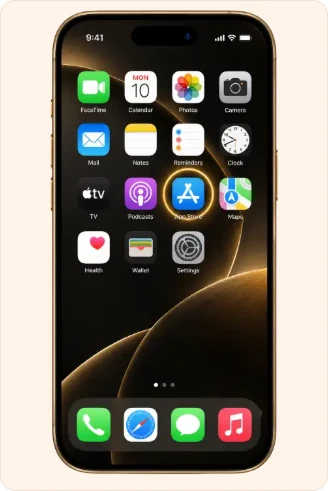
1. Open the App Store on your phone.
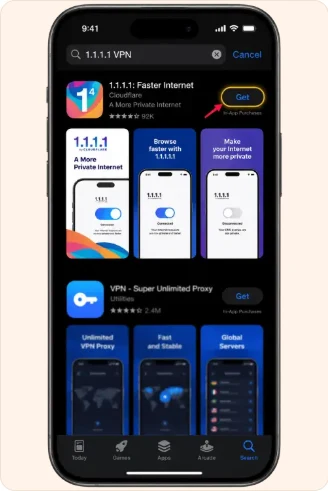
2. Find 1.1.1.1 by Cloudflare and review its listing.
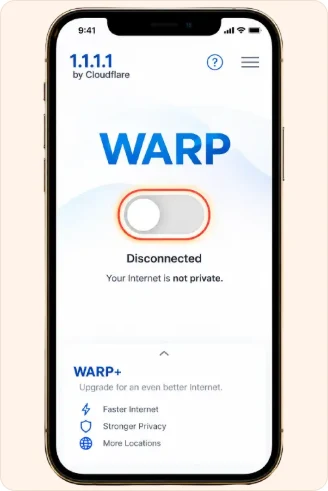
3. Open the utility and turn on the WARP switch.
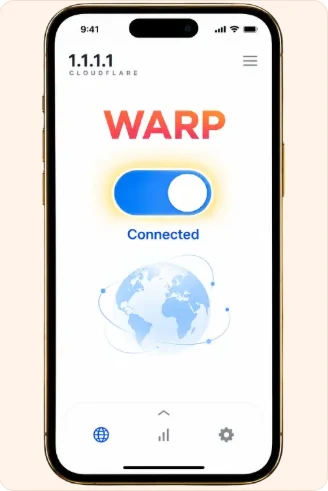
4. Check that the utility displays Connected.
Android connection steps
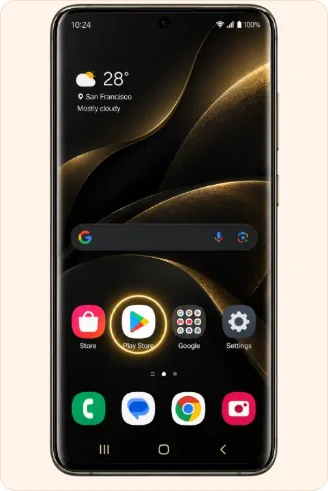
1. Open the Play Store on your phone.
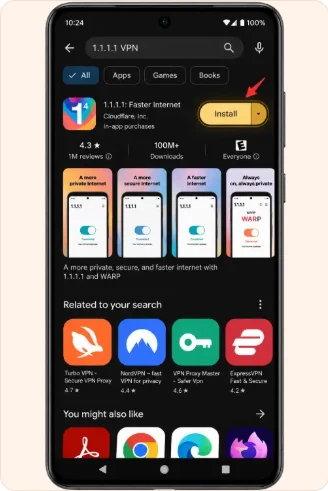
2. Find 1.1.1.1 by Cloudflare and review its listing.
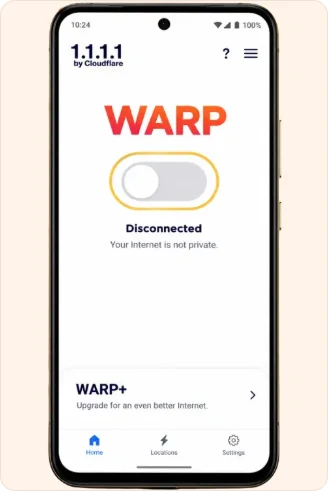
3. Open the utility and turn on the WARP switch.
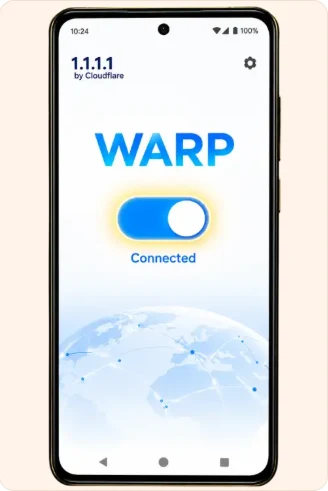
4. Check that the utility displays Connected.